
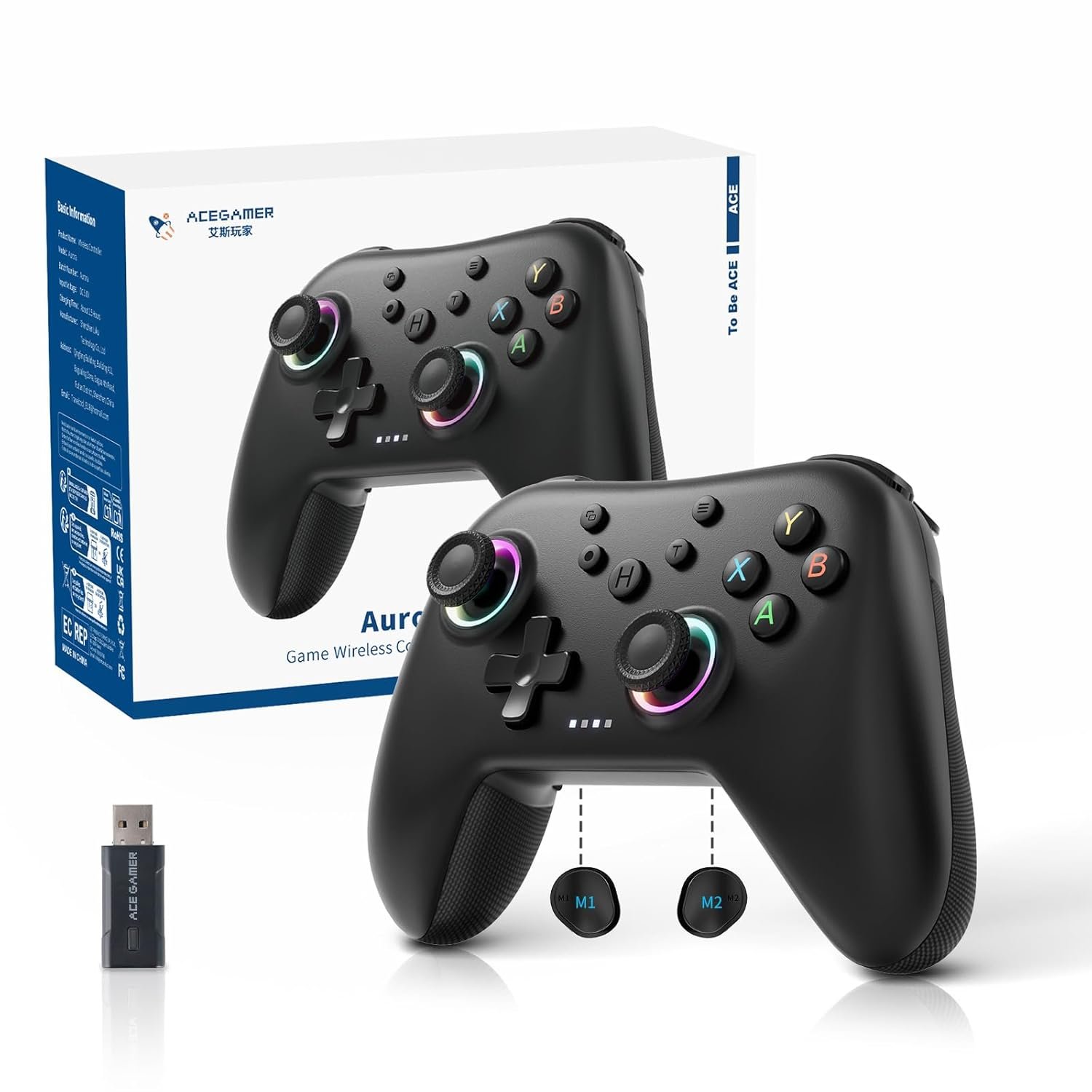
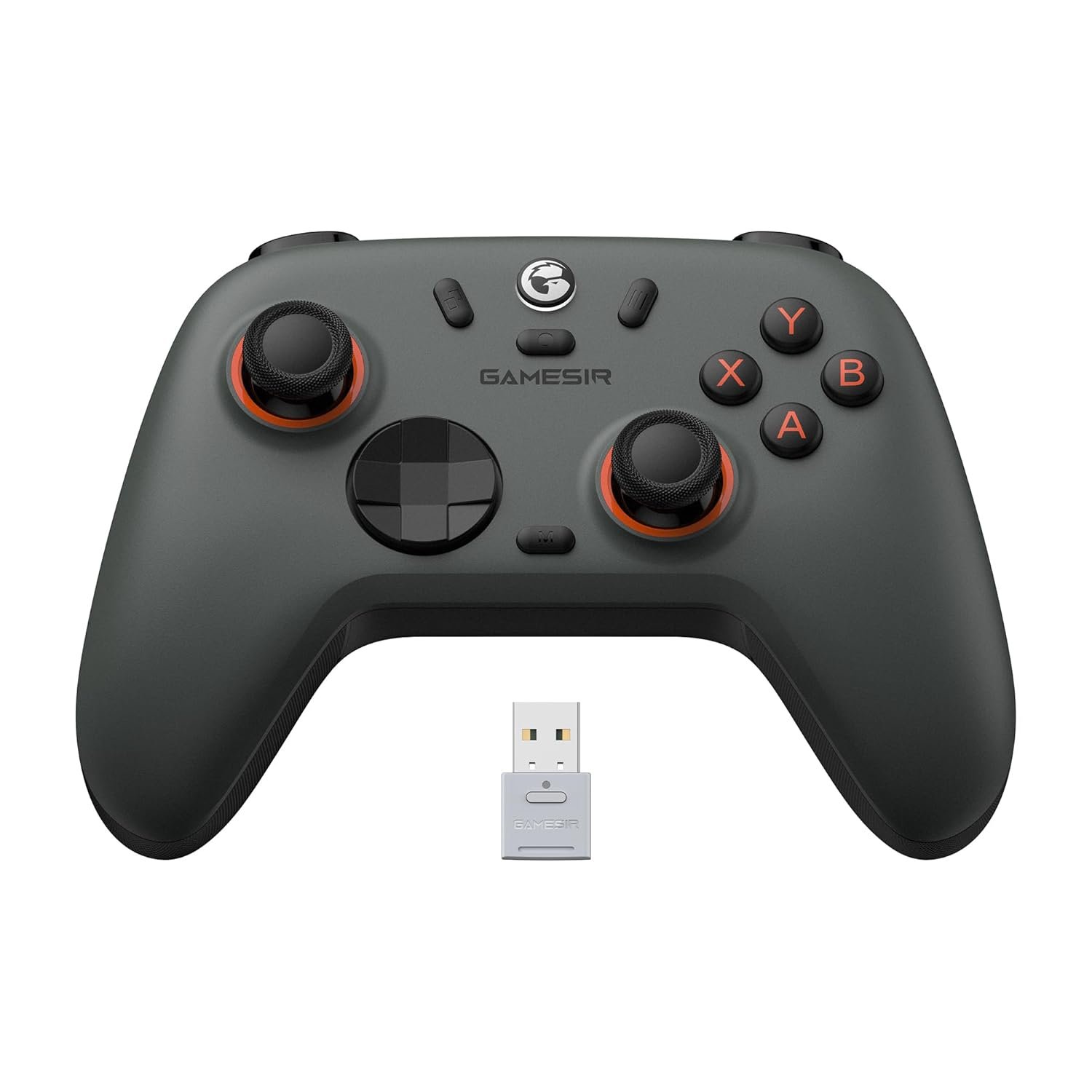
AceGamer Aurora II 2.4G Wireless Bluetooth Controller for PC/Android/Switch/iOS/Switch 2/Steam Deck with Rotary Motors, RGB Hall Effect Joysticks – Upgraded PC Gaming Controller and Back Buttons Lock
$24.99
Related Products
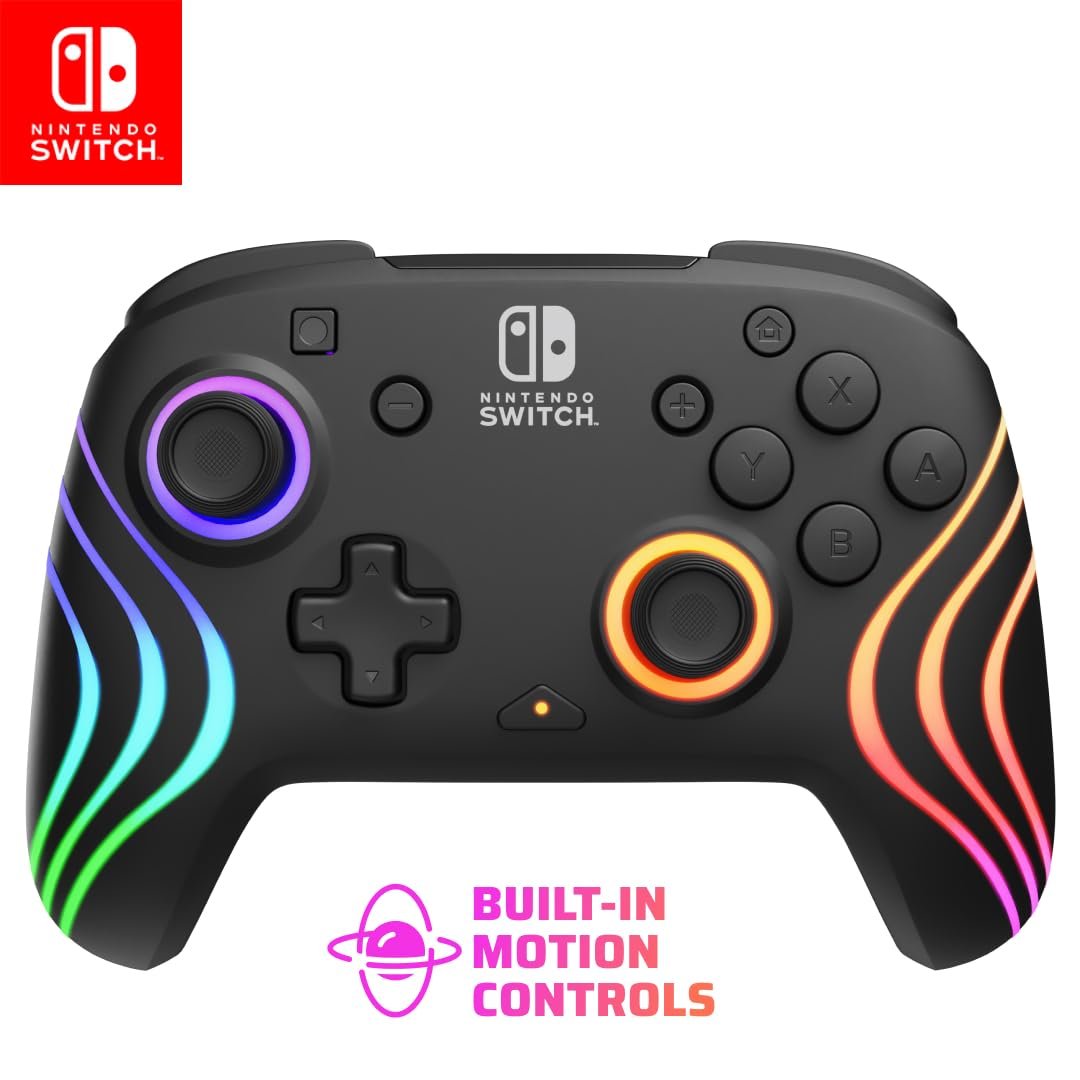




Product description




1 3 Connection Modes
2 8-Way to 4-Way
3 RGB Lighting Adjustment
4 Game Operation Mode
5 FPS Mode
How to connect? Check Compatibility: Will It Work With Your Device?
Tap to watch our Quick Pairing GuideAurora II 2.4G Wireless Bluetooth Controller for PC/Android/Switch/iOS/Switch 2/Steam DeckNot compatible with Xbox, PS5, PS4, Fire TV and GeForce NowHow to resolve the issue of incorrect Bluetooth names during connection?Check whether the wrong mode combination key was pressed during the connection process.
The video showcases the product in use.The video guides you through product setup.The video compares multiple products.The video shows the product being unpacked. Aurora Ⅱ——Connection for Multi-Platform
Tap to watch our Quick Troubleshooting How to reset the controller?
When encountering an unresponsive controller, we recommend first performing a controller reset, then reconnecting the device.
The video showcases the product in use.The video guides you through product setup.The video compares multiple products.The video shows the product being unpacked. How to restore factory settings?
Tap to watch our Quick Troubleshooting How to restore factory settings?
When encountering issues such as unresponsive buttons or startup failures, we recommend performing a factory reset and then reconnecting the device.
The video showcases the product in use.The video guides you through product setup.The video compares multiple products.The video shows the product being unpacked. How to restore factory settings?
Tap to watch our Quick Troubleshooting How to Calibrate Joystick Triggers?
When joysticks or triggers malfunction, we recommend calibrating the joystick and trigger, then reconnecting them according to the steps.
The video showcases the product in use.The video guides you through product setup.The video compares multiple products.The video shows the product being unpacked. How to Calibrate Joystick Triggers?
🎮【Newly Enhanced】1、Upgraded receiver and encryption dongle for stronger, more stable connectivity. 2、Added support for host SW 2 connection. 3、Reduced Hall Stick drift for improved accuracy. 4、Fully upgraded key buttons for better performance.
🎮【Customizable Back Keys】The controller features 2 additional programmable buttons on the back, allowing you to customize trigger combos or any other features to enhance your gaming convenience and experience. There are also two back button switches for easy access.
🎮【Wireless Connection】The Gaming Controller adopts 2.4G wireless transmission technology, which has the characteristics of stable signal, strong anti-interference, long connection distance and delay elimination. The handle is plug and play, no additional drive required. Note: For 2.4G connection, you need to press and hold the “A” button first, then press and hold the “HOME” button for 3 seconds, it will start pairing with the receiver. For Bluetooth connection, press and hold the “HOME” button for 3 seconds.
🎮【Large Capacity Battery】Say goodbye to game interruptions.The AceGamer Aurora II controller is equipped with a 1000mAh upgraded battery, which provides an extra-long playtime on a single charge. With longer battery life, you can immerse yourself in games for longer without worrying about running out of power.
🎮【Multi-Platform Compatibility 】Our controller is designed to be compatible with various platforms, including PC Windows 7,Windows 10and later version, Switch, iOS, and Android. No matter which device you prefer for gaming, our controller provides seamless connectivity and smooth gameplay across multiple platforms, ensuring versatility and convenience.!Note!: The controller is not compatible with the Xbox system.
🎮【Hall Effect Joysticks】 Enjoy enhanced joystick control with our two Hall Effect sensors. These sensors provide precise and reliable input detection for smooth and accurate in-game movement. Whether you’re navigating a virtual world or taking precise aim, our Hall Effect technology ensures a seamless gaming experience.
🎮【How to connect 】1. For 2.4G receiver connection, first press and hold the “A” button, then press and hold the ‘HOME’ button for 3 seconds to begin pairing with the receiver. For Bluetooth connection, press and hold the “HOME” button for 3 seconds. 2. Bluetooth connection: Press and hold the HOME button on the controller for approximately 3 seconds to initiate Bluetooth pairing. Enable Bluetooth search on your PC, then click to connect to “Xbox Wireless Controller.” Once Bluetooth pairing is successful, LED2 will illuminate.
🎮【Power-saving mode 】The Aurora II controller will automatically enter sleep mode after five minutes of inactivity. Press the Home button again to reconnect.
13 reviews for AceGamer Aurora II 2.4G Wireless Bluetooth Controller for PC/Android/Switch/iOS/Switch 2/Steam Deck with Rotary Motors, RGB Hall Effect Joysticks – Upgraded PC Gaming Controller and Back Buttons Lock
Add a review
$24.99
Samuel –
Bonche –
Mike Vuksanic –
Amazon Customer –
Savage –
Jericho –
vannahbanana143 –
Justin strait –
Reece –
Muriel –
Andrea –
Melle –
Très belles chaussures solide By Colombia –